Showing posts with label console. Show all posts

Friday, July 08, 2011

firebug frame - tips

Here are a few tips for using firefox's firebug and frames:

An example of a frameset:

screenshot of a frameset rendered in firefox


<?xml version="1.0" encoding="UTF-8"?>
<!DOCTYPE html PUBLIC "-//W3C//DTD XHTML 1.0 Frameset//EN" "http://www.w3.org/TR/xhtml1/DTD/xhtml1-frameset.dtd">
<html xmlns="http://www.w3.org/1999/xhtml" xml:lang="en" lang="en">
<head>
<title>Frameset example</title>
</head>
<frameset rows="50%, 50%">
 <frame src="frame1.html" id="frame1" name="frame1"/>
 <frame src="frame2.html" id="frame2" name="frame2"/>
</frameset>
</html> 

By default firebug is relative to the "window", to make commands relative to a frame instead, you can use the "cd" command in the console pane, for example:


cd(window.frames["frame1"])
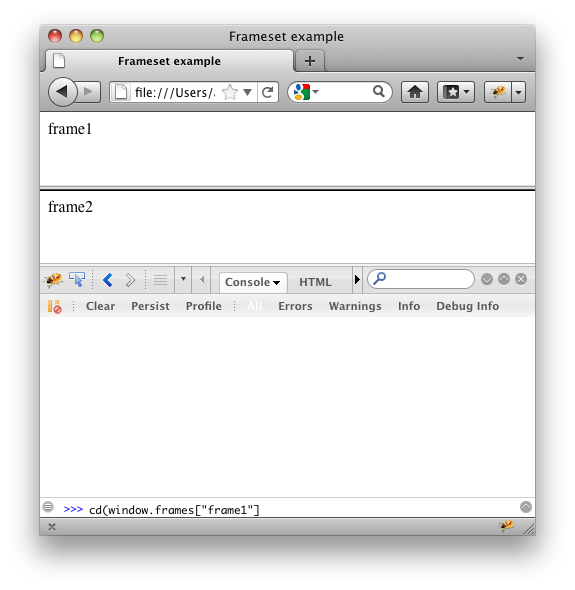
a command typed into firebug command line in firefox

Now when you execute command it will be relative to the window instead.

So for example if you had this code in frame1:


<?xml version="1.0" encoding="UTF-8"?>
<!DOCTYPE html PUBLIC "-//W3C//DTD XHTML 1.0 Transitional//EN" 
        "http://www.w3.org/TR/xhtml1/DTD/xhtml1-transitional.dtd">
<html xmlns="http://www.w3.org/1999/xhtml">
<head>
<title>frame1</title>

<script type="text/javascript">
function hello() {
 alert("hello")
}
</script>

</head>
<body>
frame1
</body>
</html>


You can run the function in the firebug command line simply by running the function: hello()
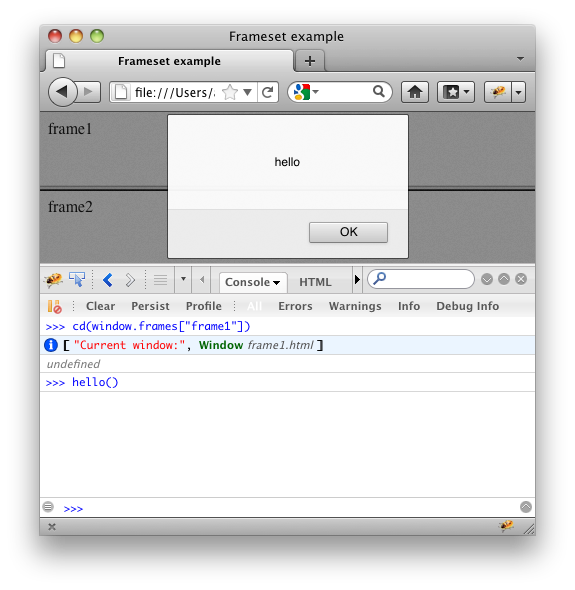
an alert box being triggered within a frameset from the outer window via the firebug commandline

Similarly you can also use this alternative syntax to get to the frames:

cd(window.top)
Back to the default root window

cd(document.getElementById("frame1").contentWindow
To reference the frame by id

cd(document.frames[0]
To reference the frame by number

Tuesday, December 14, 2010

Log to the built-in IE developer console

Rather than using JavaScript alert()'s to see the value of variables and alike, the IE developer tools allows you to output to IE's JavaScript console.
To open the IE developer tools, simply press F12

The console log command is simply:
console.log()

So for example:

<script type="text/javascript">
    for (var i = 0; i < 5; i++) {
        console.log("hello" + i);
    }
</script>

Would output something like this:

This is a rudimentary example, but s is especially useful if you want to know the value of many variables at a glance (rather than keep having to press OK for each alert()!)

Watch out for...

One gotcha is that your JavaScript will error in IE if your console is not open, because the console object will not be found, the simplest way around this is to remove your console commands after you have finished with them. I will post a workaround for this at a later date.

Of course using breakpoints and stepping through the debugging, is more often a better option (I'll do a quick post on how to do this at a later date), but in many situations outputting to the console is very useful.

The IE developer tool bar is built into Internet Explorer 7+ (I pressume it will also be in IE9+). As mentioned above you can access it by pressing F12 (or by using the menu).

More information

There are many variations of console.log, more information available on the MSDN site: Using Console for Logging Alerts and Error Messages

These posts are only here to give you quick and easy tips... however if web development is your day to day role, I'd highly recommend getting familiar with the built-in IE developer tools. More information is available on the MSDN site: IE Developer Tools tutorials