Showing posts with label internet explorer. Show all posts

Monday, December 20, 2010

Website screen resolution test in Internet Explorer

It's easy to simulate various screen resolutions (screen sizes) in Internet Explorer using the built in developer tool (built in since IE7). Allowing you to test your webpages in various screen sizes.

Simply go to the menu item as illustrated below or press the keyboard shortcut F12 to load the developer tool.
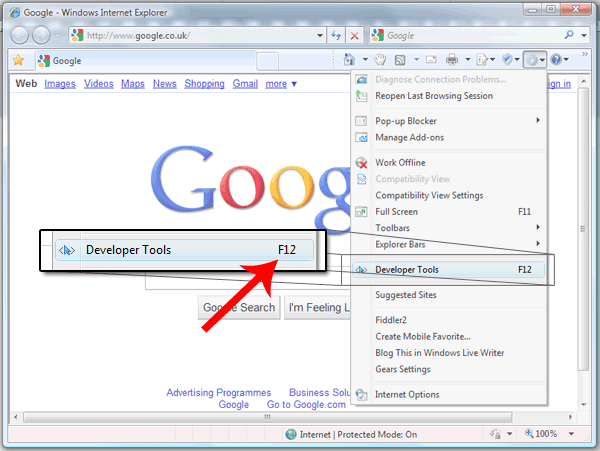

To open the developer tool in Internet Explorer 8; click the cog icon in the top right hand size, then click 'developer tool'

The built-in IE developer tool should now open, as illustrated below.

With the developer tool now open; in the menu click "Tools" > "Resize" and select the screen resolution of your choice. By default you can simulate, 800x600, 1024x768, 1280x768 and 1280x1024, which covers the most popular resolutions. However you can also provide your own custom resolutions.

Once the developer tools are open, click

Notably, this is only a simulation of screen resolutions. It does not show you exactly what a person using these screen resolutions will see. It will only change the height/width of your browser window and will not effect font sizes etc etc. But it is far faster than changing your own monitor resolution each time you wish to test.

The resolution simulation is therefore very useful for testing CSS layouts, but perhaps not as useful if your testing for accessibility compliance etc. You could use this technique for day-to-day testing, coupled with actually changing your monitor resolution (more time consuming) for more in-depth testing.

This tip has been written for Internet Explorer 8 under Vista, but it should be very similar for IE7+ under XP+.

Sunday, December 19, 2010

Simulate a slow internet connection in web browsers (Internet Explorer, Firefox, Chrome etc)

You can easily simulate a slow internet connection, by using a tool called "fiddler".

Perhaps you are trying to debug a web application that is behaving strangely on other peoples computers (but is working fine on your own?!). Perhaps you wish to simulate a slow modem or a slow corporate VPN.

The fiddler is a web debugging proxy which logs all HTTP traffic between your computer and the internet. The fiddler has a setting to temporarily throttle your internet connection, to make your connection behave like a slow modem. The great thing about the fiddler is that it "automagically" sits in between all your web browsers and the internet, so it works with firefox, internet explorer, chrome etc etc.

Firstly you need to install "fiddler", just go to http://www.fiddler2.com, download it and install it. It installs in seconds and has a getting started guide if you need it.

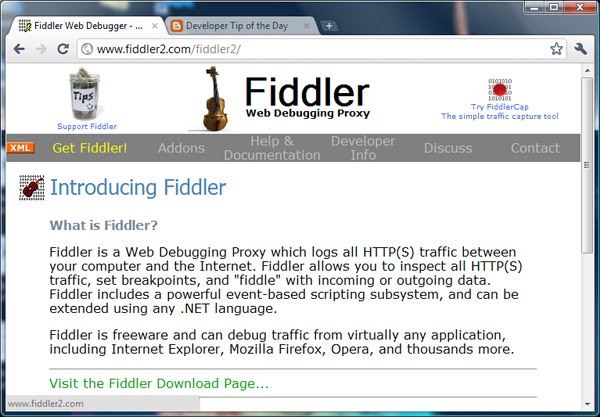
a screen shot of fiddler2.com

Once you have the fiddler installed, open it and once loaded you should see a window similar to below. It should automatically act as a proxy, so if you browse to a website in any browser you should see it being logged in the fiddler.

the first page of the tool: fiddler. With a few HTTP requests logged.

To switch on "simulate slow modem speeds" mode in the fiddler (as illustrated in the screen shot below):

  1. If not already opened, open the fiddler.
  2. Click "Rules" on the top menu.
  3. Then go to "performance".
  4. Click "simulate modem speeds"
a screen shot illustrating how to turn on simulate modem speeds in the application called fiddler.

Now any web browser that is using fiddler (should be all web browsers by default), will temporary be slow (until you turn it off)

This is only scratching the surface of what the fiddler is useful for. There is plenty more information and an introductory video in the fiddler help section.

Tuesday, December 14, 2010

Log to the built-in IE developer console

Rather than using JavaScript alert()'s to see the value of variables and alike, the IE developer tools allows you to output to IE's JavaScript console.
To open the IE developer tools, simply press F12

The console log command is simply:
console.log()

So for example:

<script type="text/javascript">
    for (var i = 0; i < 5; i++) {
        console.log("hello" + i);
    }
</script>

Would output something like this:

This is a rudimentary example, but s is especially useful if you want to know the value of many variables at a glance (rather than keep having to press OK for each alert()!)

Watch out for...

One gotcha is that your JavaScript will error in IE if your console is not open, because the console object will not be found, the simplest way around this is to remove your console commands after you have finished with them. I will post a workaround for this at a later date.

Of course using breakpoints and stepping through the debugging, is more often a better option (I'll do a quick post on how to do this at a later date), but in many situations outputting to the console is very useful.

The IE developer tool bar is built into Internet Explorer 7+ (I pressume it will also be in IE9+). As mentioned above you can access it by pressing F12 (or by using the menu).

More information

There are many variations of console.log, more information available on the MSDN site: Using Console for Logging Alerts and Error Messages

These posts are only here to give you quick and easy tips... however if web development is your day to day role, I'd highly recommend getting familiar with the built-in IE developer tools. More information is available on the MSDN site: IE Developer Tools tutorials